
 Huskili Time Manager
Know where the day actually went.
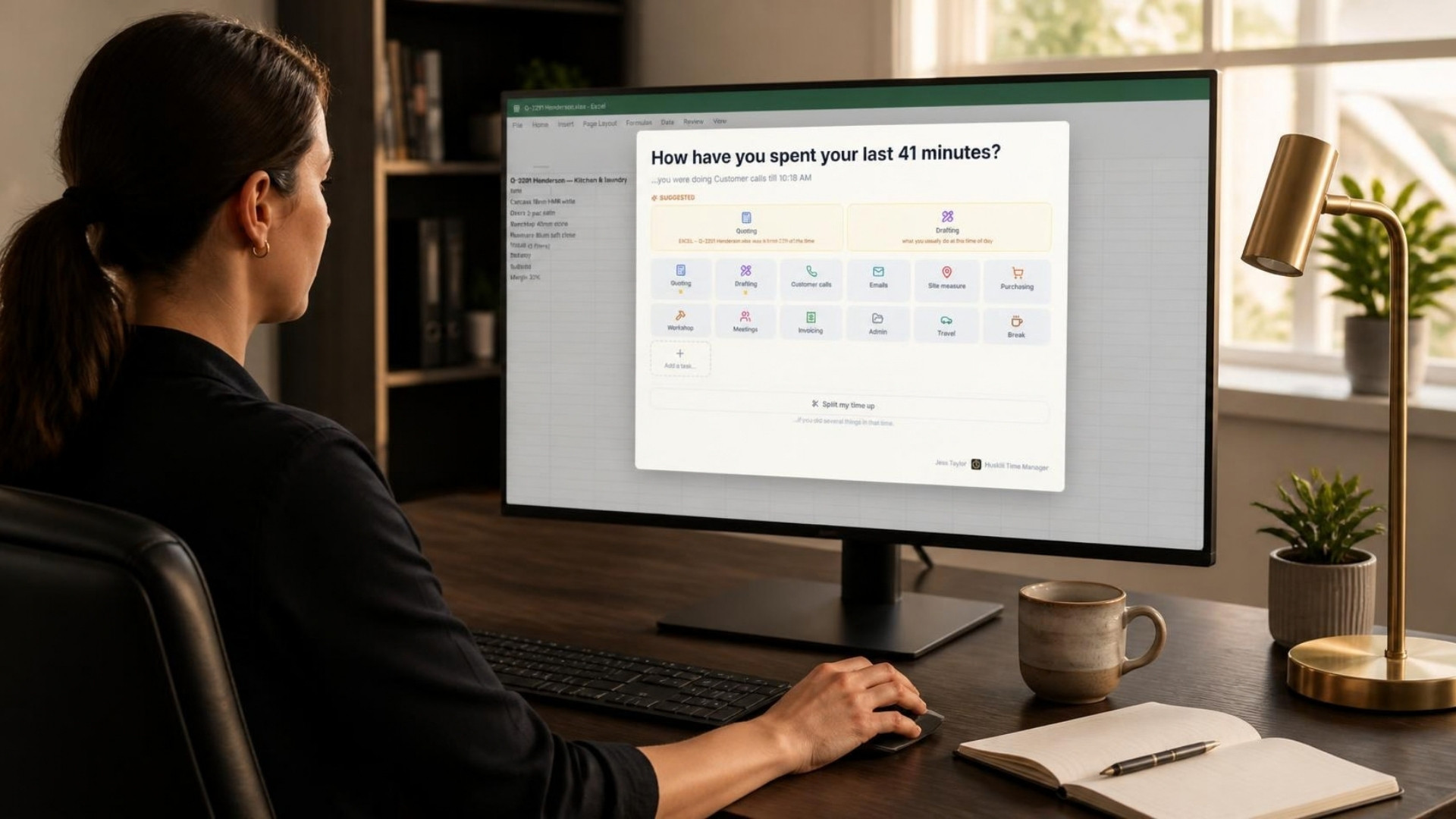
Every so often a small window asks your team one question: what have you been working on? One click on a tile and it’s recorded. By Friday you have accurate timesheets, real job costs and a clear picture of how much of the week was profitable, without anyone filling in a timesheet from memory.
Windows 10 and 11 desktop app plus a web dashboard.
Sound familiar?
Timesheets are guesswork, and guesswork is expensive
Most small businesses know how many hours were paid. Very few know what those hours were spent on, which jobs made money, or how much of the day went on admin nobody quoted for.
Filled in from memory on Friday
By the end of the week nobody remembers Tuesday. The timesheet gets rounded to eight hours a day and split across whatever jobs seem right.
Nobody knows what a job really cost
Quotes are priced on hours that were never measured, so the same underpriced job keeps getting won and keeps losing money.
Timers nobody remembers to start
Start-stop time trackers only work if people remember to press start. They don’t, and a half-empty tracker is worse than none.
How it works
One question, a few seconds, all day
Time Manager sits quietly in the Windows tray. It installs without admin rights and keeps itself up to date. It only appears when it needs an answer, it takes mouse clicks only (so a stray Enter mid-email can’t answer it), and it’s gone again the moment you click.
01 · Arrive
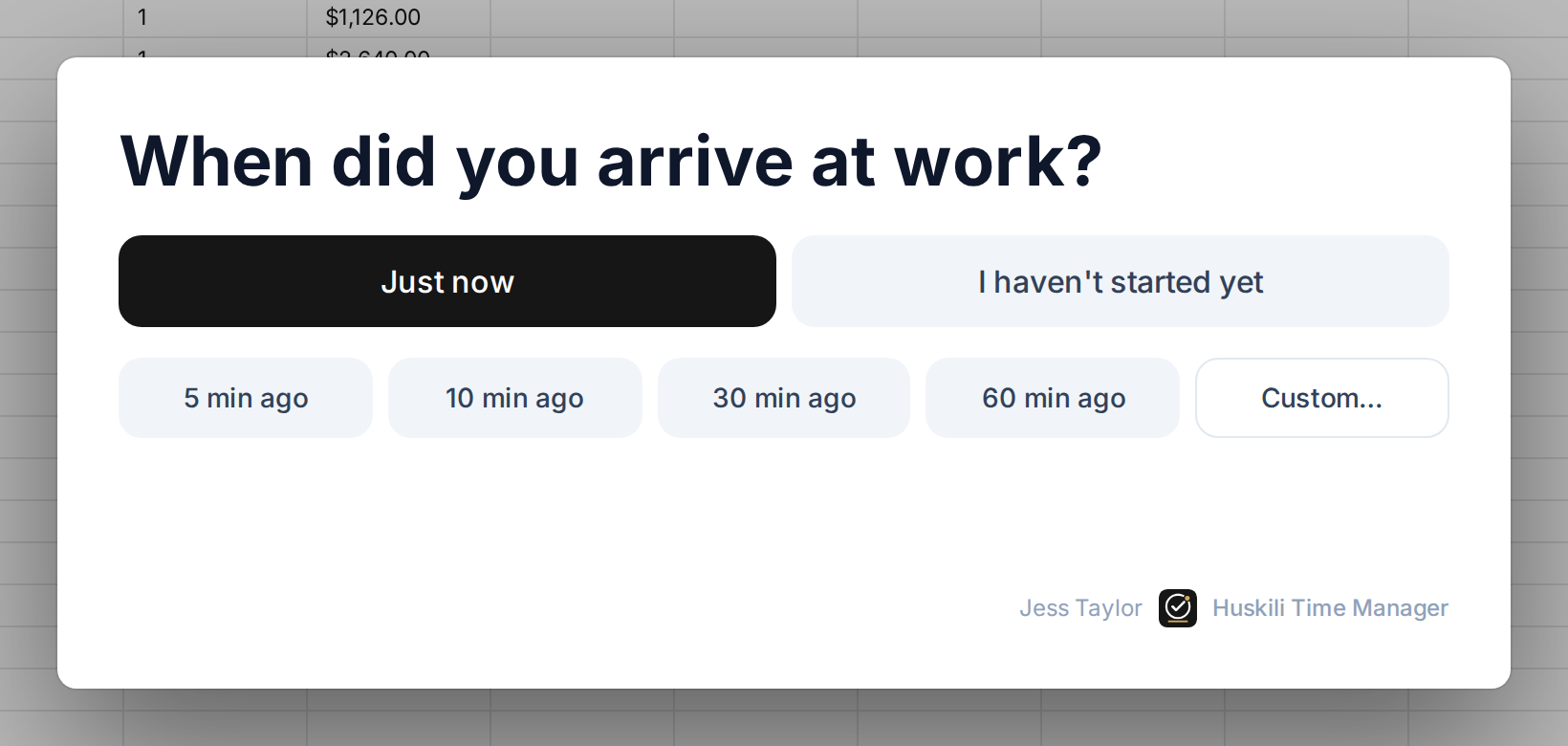
Clock in without thinking about it
The first time you touch your PC in the morning, Time Manager asks when you arrived. Just now, 10 minutes ago, or a custom time if you forgot. Not started yet? It snoozes and asks again in a few minutes.
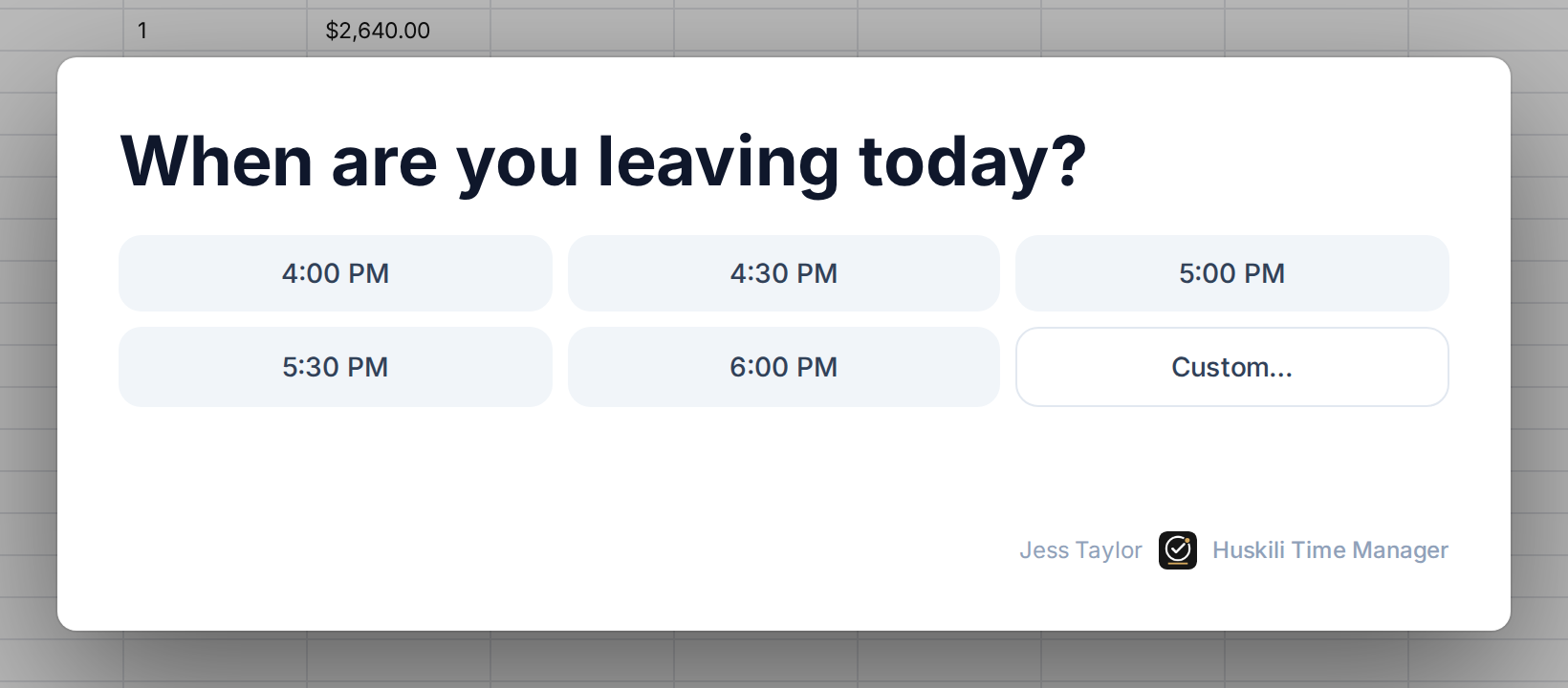
It then asks when you’re planning to leave, so it knows when to wrap the day up.
02 · Work
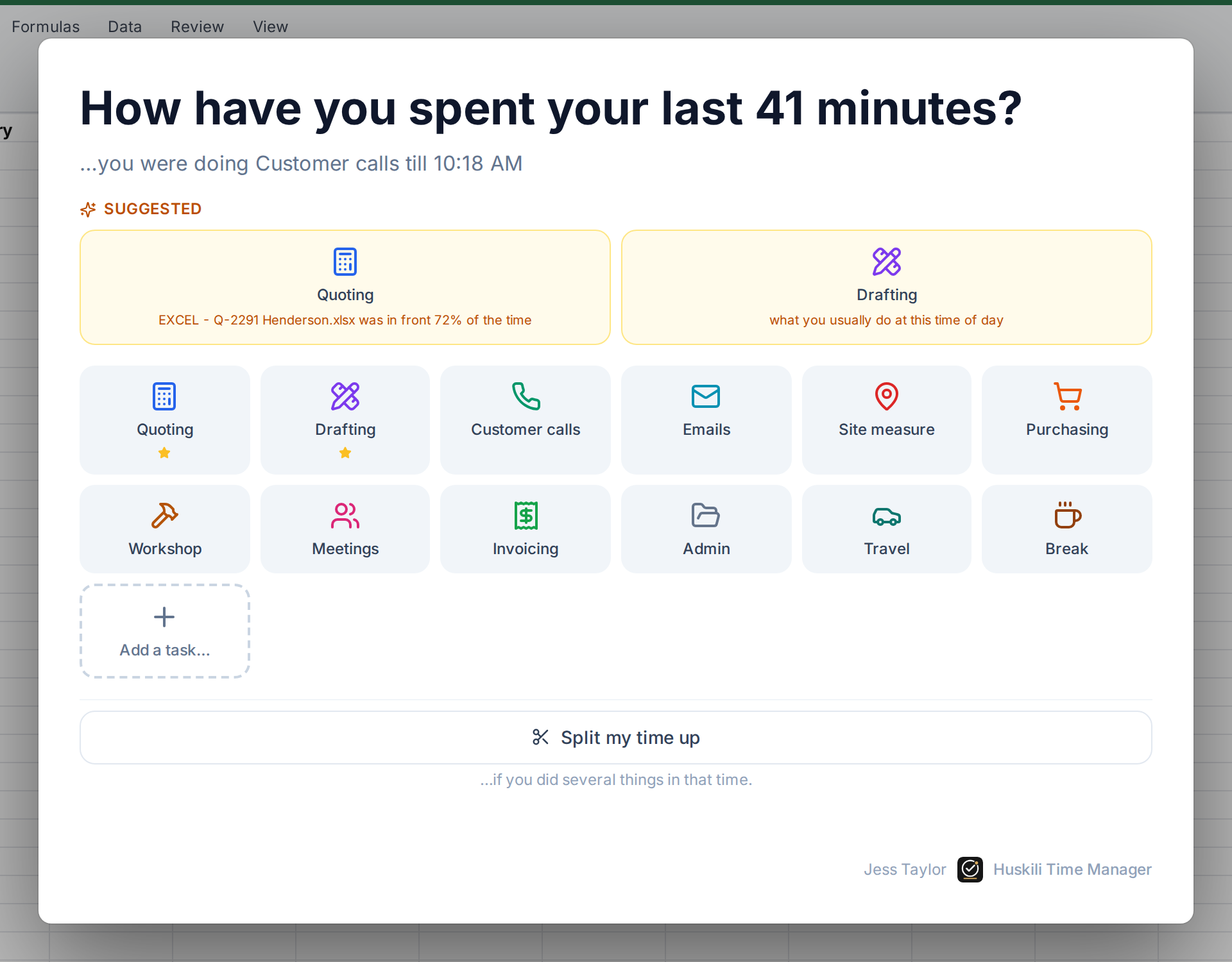
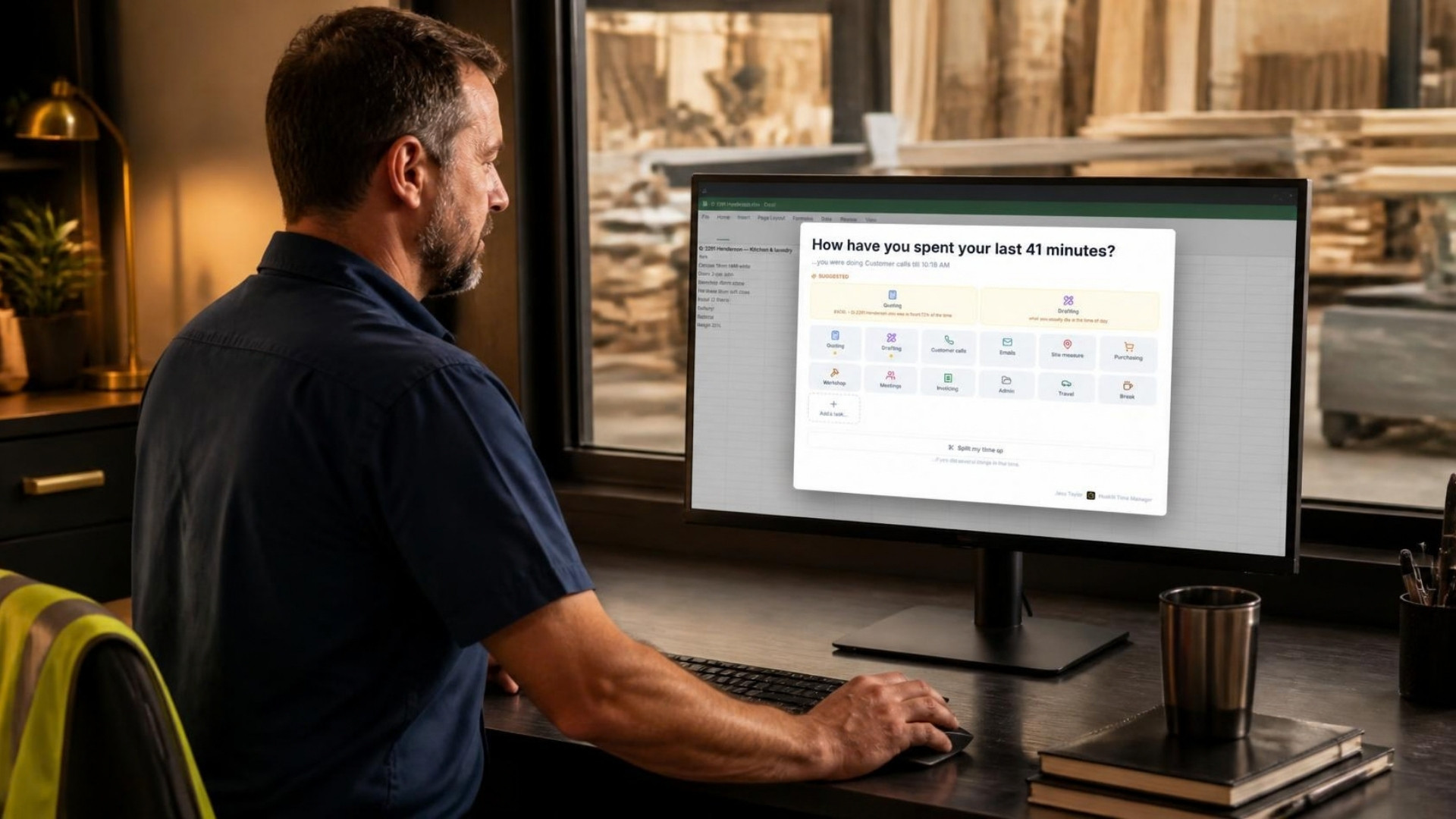
Every so often: how have you spent the last 41 minutes?
At an interval you choose (every 10 minutes by default), a popup asks what you’ve been doing, with your company’s tasks as big coloured tiles. One click and that block is recorded.
It even tells you where you left off: “…you were doing Customer calls till 10:18 AM.” Favourite tasks are starred, and if the task isn’t there, anyone can add it on the spot (or you can lock that to admins).
03 · Busy hour
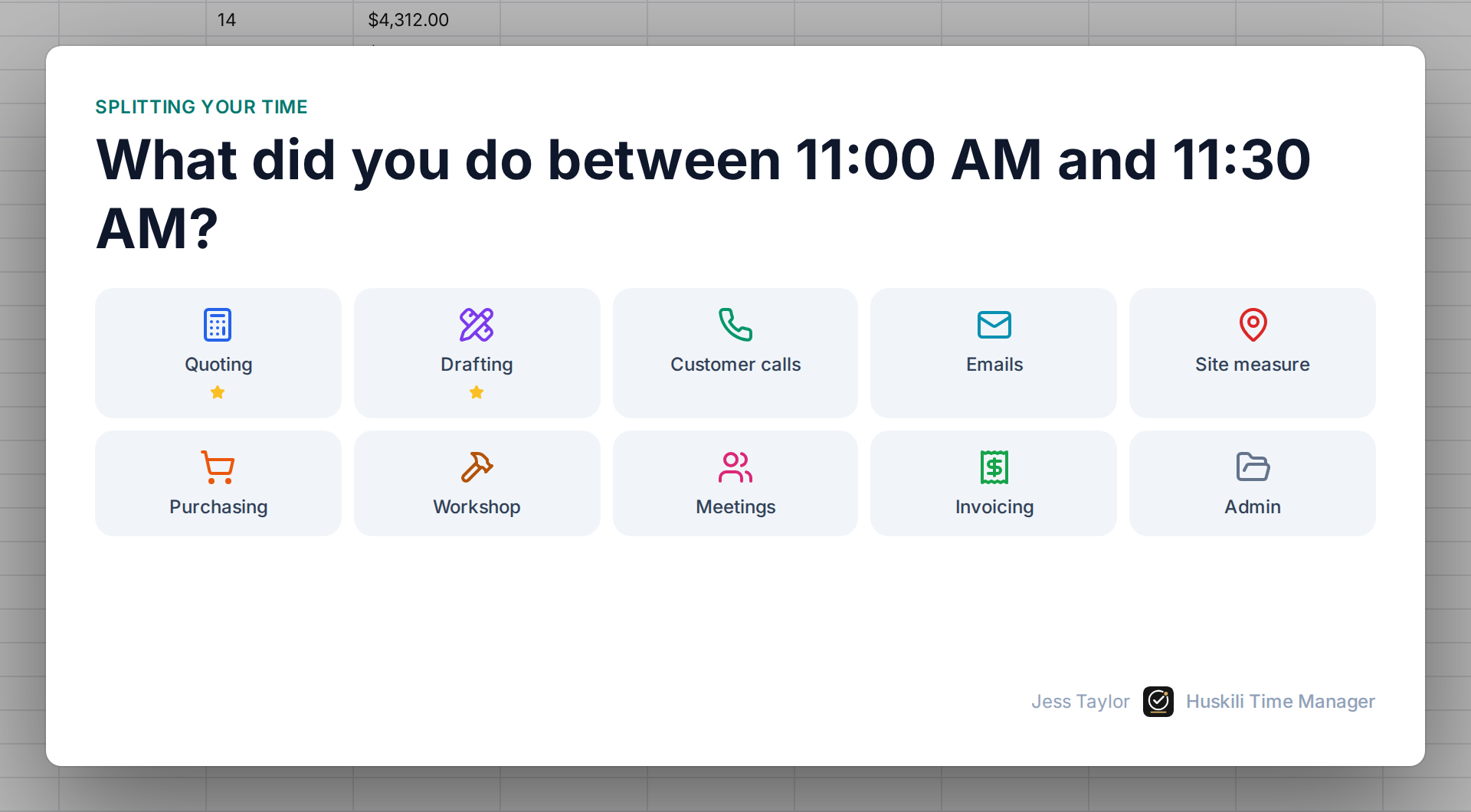
Did three things in that hour? Split it up
Came back from a long meeting or a site visit? Instead of forcing one answer, Split my time up breaks the gap into 5, 10, 30 or 60-minute blocks and asks about each one in turn.
It’s the difference between a timesheet that’s roughly right and one you can actually cost a job from.
04 · Go home
Leave on time, clocked out properly
At your leaving time it asks for the last block of the day and clocks you out. Staying back? Add 10, 30 or 60 minutes. Walked out without answering? It clocks you out automatically so nobody racks up a phantom 14-hour day.
Come back later to finish something off? I’m back in picks up where you left off.
Smart suggestions
It learns what you’re working on
If a quote spreadsheet was open for most of the last half hour, the popup puts Quoting at the top with the reason underneath. If you always do emails first thing, it suggests that at 8 am. The more your team answers, the better the suggestions get, so answering takes a single click.
No AI service reads your screen. Suggestions come from a small scoring model that runs on your own company’s history, and you decide what it’s allowed to see.
Privacy by design
Time tracking, not surveillance
Time Manager asks people what they did. It doesn’t watch them do it. Admins pick one of three settings for the whole company.
- Off: nothing about your PC is sent. Suggestions use time of day and past answers only.
- App names: which program was in front (Excel, Outlook, your CAD package) and for how long.
- App names and window titles: adds the document or window name, for the sharpest suggestions.

For owners and managers
The numbers you’ve been guessing at
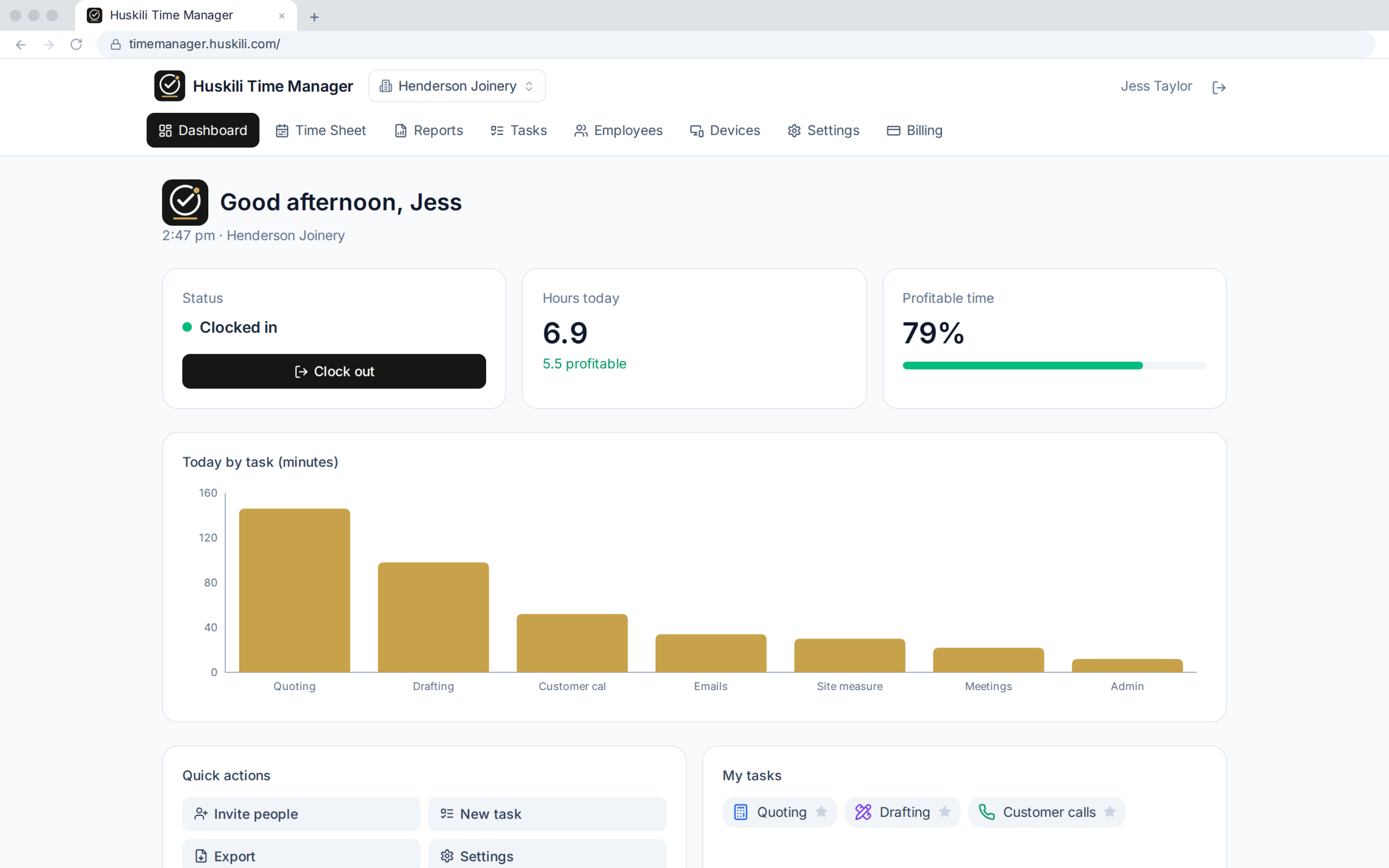
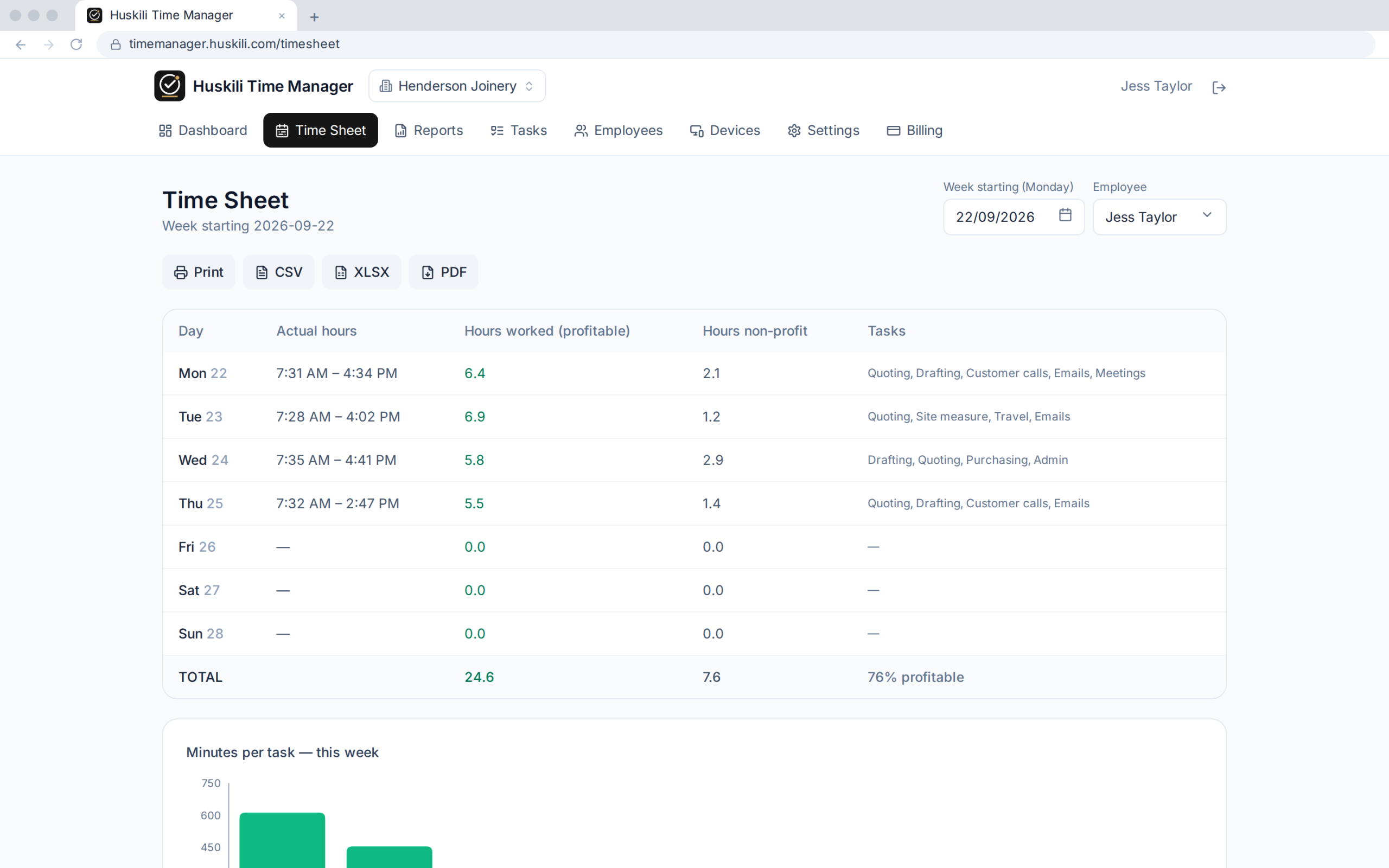
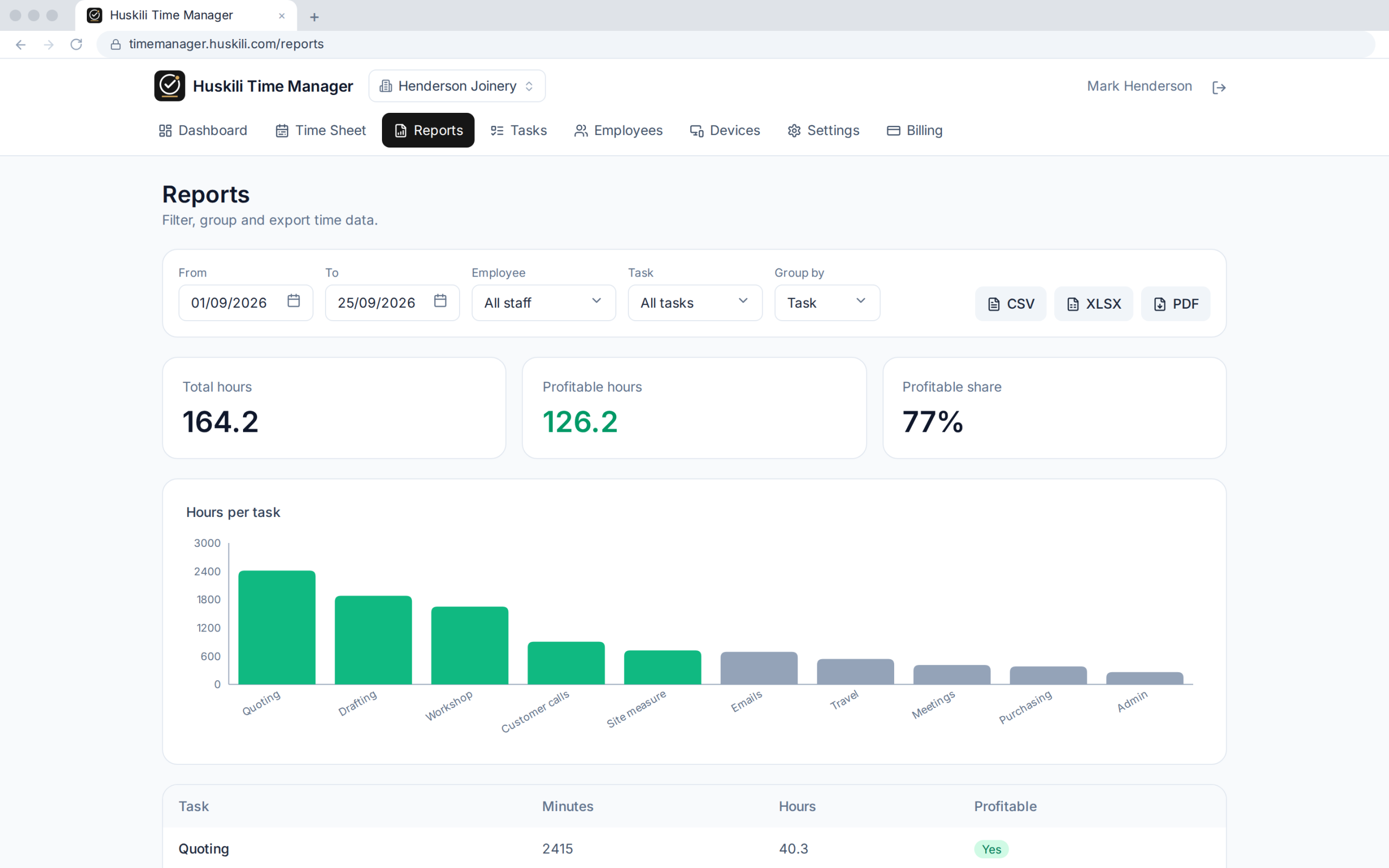
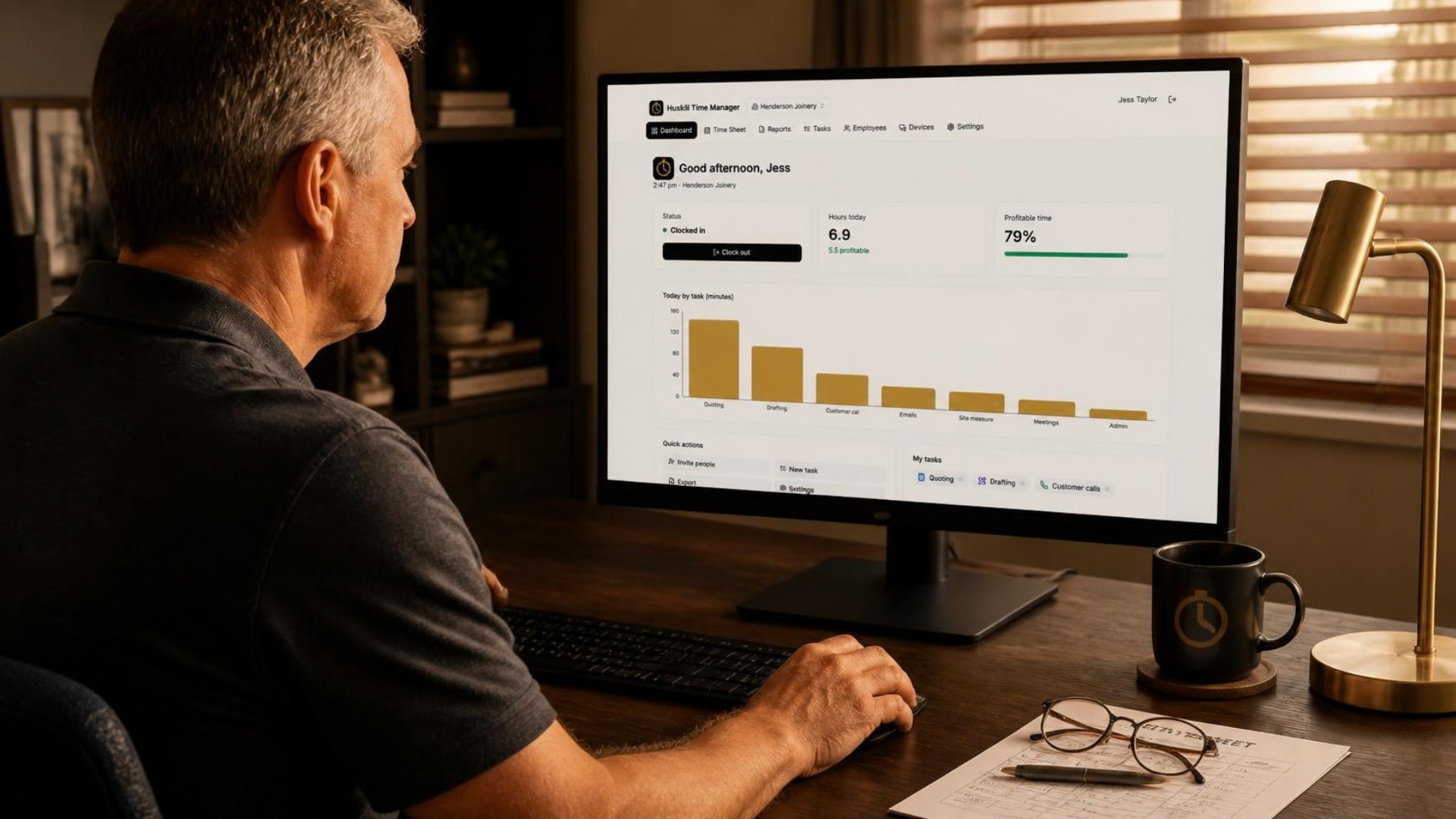
Every task is flagged as profitable (billable, on the tools, on a job) or not. That one flag turns a pile of timesheets into the question every owner actually cares about: how much of the week did we get paid for?
What changes
Quote from facts, not feel
After a few weeks you know how long a kitchen really takes to draw, how many hours of phone calls sit behind every job, and which staff are buried in admin that should be automated.
- Payroll hours that match what people actually worked
- Job costing based on measured time, not the quote
- A weekly profitable-time percentage for every person and task
- Evidence for where the next hire, or the next automation, should go
Features
Everything a small team needs, nothing it doesn’t
Popup every few minutes
Pick the interval. The popup is mouse-only and can’t be answered by a stray keypress.
Smart suggestions
Top two guesses with the reason, based on the apps in front and time of day.
Split long gaps
Turn an hour away from the desk into accurate 5 to 60-minute blocks.
Auto clock-out
Asks your leaving time, then wraps up the day even if nobody answers.
Your own task list
Icons and colours, profitable flag, per-person assignment and favourites.
Invite the team
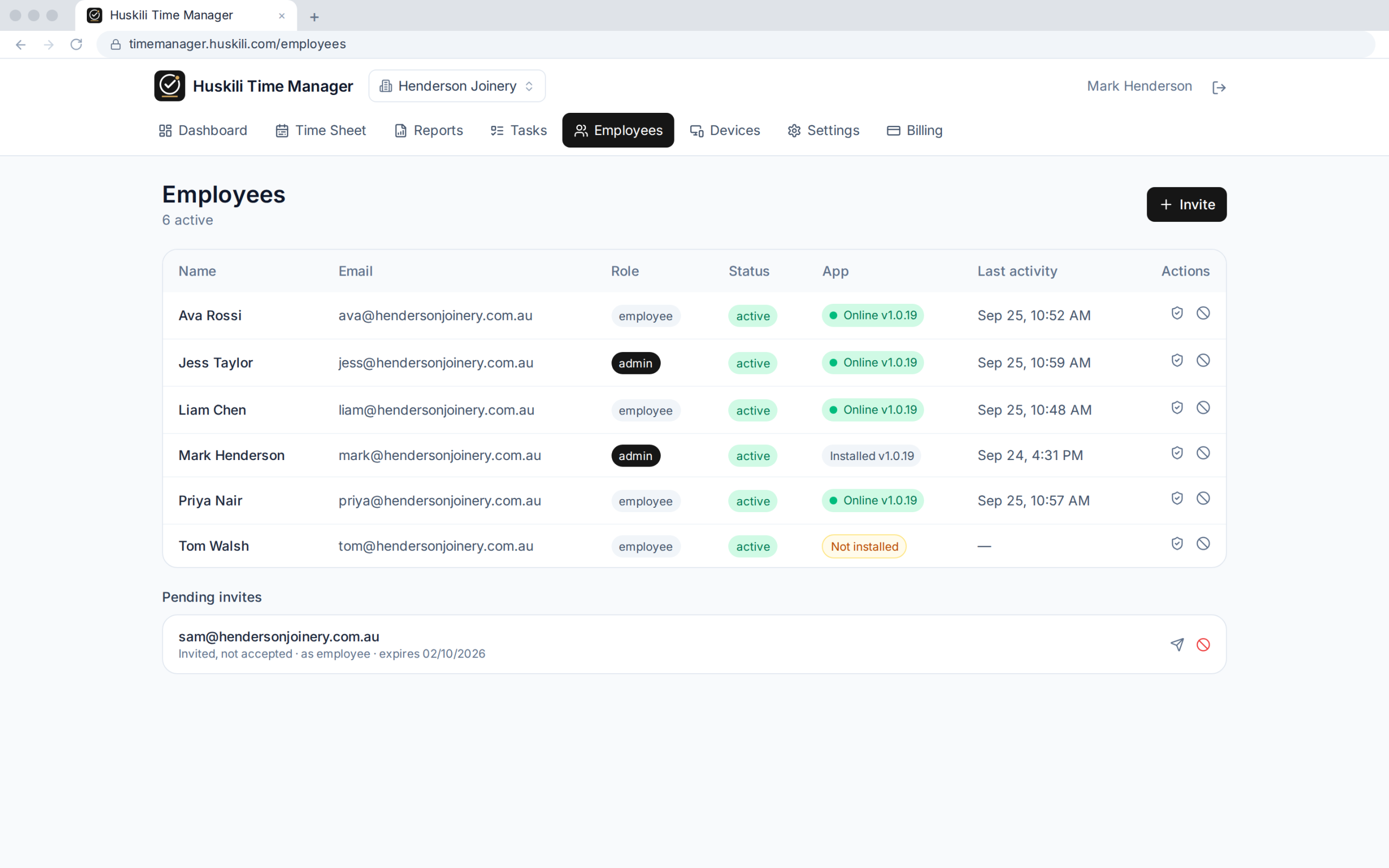
Email invites, admin and staff roles, and several companies under one login.
Export anywhere
Print, CSV, Excel or PDF, for any person, week or date range.
Quiet in the tray
Installs without admin rights, keeps itself up to date and stays out of the way until it needs an answer.
Connected to the rest of your business
Not another export to retype
Connecting systems is what we do every day, so Time Manager can be set up to work with the software you already run.
- Hours pushed into payroll or accounting
- Tasks and jobs pulled from your job or quoting system
- Job costing back into your ERP
- On-site rollout and staff training
Questions
Frequently asked
Is this going to feel like being watched?
No. Time Manager asks people what they did; it doesn’t record their screen, keystrokes or browsing. Activity tracking can be switched off entirely, or limited to app names, and it’s only ever used to suggest that person’s own tasks.
What if someone ignores the popup?
It waits. When they next answer, the whole gap is recorded, and if it was long they can split it into blocks. At leaving time it clocks them out automatically so an ignored popup never becomes a 14-hour day.
How often does it ask?
Every 10 minutes by default. Admins can change the interval, the leaving-time presets, how long the auto clock-out waits and which days are work days.
Can we use our own tasks?
Yes. Build your own list with icons and colours, mark which ones are profitable, and assign tasks to everyone or to specific people. Staff can add a missing task from the popup unless you turn that off.
What does it run on?
A small Windows 10 or 11 desktop app shows the popups. It installs without admin rights and updates itself. The dashboard, time sheets, reports and settings run in any web browser, so managers don’t need to install anything.
Can it feed our payroll or job system?
Yes. Connecting systems is what Huskili does every day, so we can wire Time Manager into your payroll, accounting and job software rather than leave you with another export to retype.
Get started
See where your team’s week really goes
Tell us how your team tracks time now and we’ll show you Time Manager running with your own tasks.
Or call 08 6117 3851 or email sales@huskili.com